Subject: FINAL (QUAKE 2)
--------------------------
For your final exercise you must meet me, and your classmates, in a multiplayer game called "Quake 2".
To play Quake 2 you must download the DEMO installer, then run that installer.
Following are the steps you'll need to take:
1) DOWNLOAD THE INSTALLER (the "q2-314-demo-x86.exe" file) TO YOUR COMPUTER.
Here are two different links to the Quake 2 installer, followed by the steps to follow:
ftp://ftp.idsoftware.com/idstuff/quake2/q2-314-demo-x86.exe
If you can't download the one above then TRY THIS ONE NEXT.
WARNING: THIS FILE IS *HUGE*!! At 37 megabytes (MB) it will take
a very long time, perhaps several hours, to download over a modem.
2) RUN THE INSTALLER AFTER IT HAS DOWNLOADED:
a) Find and double click on the installer named "q2-314-demo-x86.exe"
The installer will display a "WinZip Self-Extraction" window. This
tells you where the actual game set-up files will be placed on your
computer.
b) Pay attention to the location where the "WinZip Self-Extraction" window
places your game setup files necessary to UN-INSTALL (REMOVE) this
game when you are done, as well as the README text file that explains
the game.
TIP: Write this location down if you don't think you'll remember it. By
default this location should be a folder called "Quake2 Demo"
on your Windows desktop.
c) Click on the "UnZip" button displayed by the "WinZip Self-Extraction" window.
This will start the extraction (unzipping) of the game setup files, meaning they
will be placed on your computer at the location presented in the above step. It
will also install the game demo files (the files needed to actually play the game)
on your computer and place a menu for the game under the PROGRAMS
item in your START MENU.
d) When done, you will be presented with a DEMO splash-screen (a big image),
which has two buttons on it:
MORE
EXIT
e) Click on the EXIT button (or MORE if you want to learn more about the games this
company offers or to UN-INSTALL the game). Anytime you want to see these options
again locate the "Setup.exe" program in the folder you chose in step 3a above (usually
this file is in a folder called "Quake2 Demo" on your Windows desktop) then double-click
the "Setup.exe" program to see the demo splash screen and these options again.---- THE GAME IS NOW INSTALLED -----
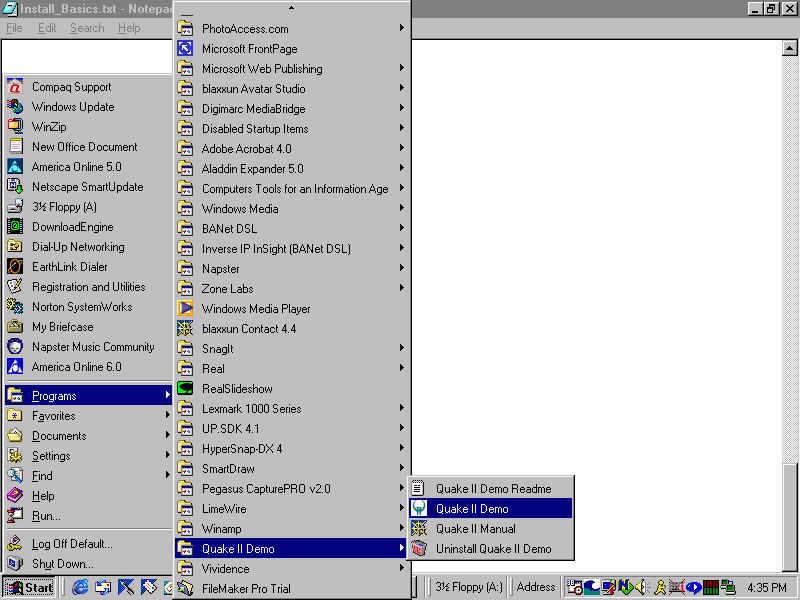
3) RUN THE GAME. TO RUN IT YOU'LL HAVE TO CLICK ON THE "START" BUTTON ON YOUR TASKBAR, THEN CHOOSE THE "Programs" ITEM, THEN CHOOSE THE "Quake II Demo" ITEM. From there you must select the "Quake II Demo" item, which launches the game.
Here is a text depiction of the menu selections you need to make to run the game from the Start menu:
Start > Programs > Quake II Demo > Quake II Demo
And here is a link to a screenshot that actually shows this menu on my computer:
http://www.gridinstitute.com/bc/mt35101/ONLINE_CLASSES/Quake2/startmenu.jpg
NOTE: Depending on how long the list of items is in your Programs menu you may have to scroll down to see the "Quake II Demo" item. In this case, simply move your mouse to the very bottom of the menu and it should automatically scroll for you.
4) ONCE INSTALLED, RUN THE GAME AND PRACTICE.
------------- PRACTICE FOR WHEN WE PLAY IN CLASS: ---------------
To play this game you need to *practice*. Spend 30 minutes running Quake 2 and trying these features.
NOTE: Press Esc to pause the game anytime you need to switch back to these instructions (or press the
ALT key and TAB at the same time to move back and forth between the game any other programs you are
running).
Below are some common keyboard commands, listed in this format
Key to press: DESCRIPTION of what that key does.
----------------
START A NEW GAME
----------------
Esc (escape): ESCAPE from the game (pause) and get options.
Note that you have to use the UP and DOWN ARROW keys to move
between options, and then press ENTER (the return or enter
key) to select that option. Here are the options:
- GAME (start a new game -- try this FIRST!)
- MULTIPLAYER
- OPTIONS
- VIDEO
- QUIT (you must press "Y" key to confirm quitting)
Use your arrow keys (and return/enter key) to start a new
game. Press the ESC key anytime to pause or quit. When
playing, press these keys to do things:
Arrow keys or mouse: MOVE AROUND (tip: use arrow keys!)
Ctrl (control): SHOOT!
Space Bar: JUMP (to walk over bodies, stairs, etc.)
Space Bar: JUMP (to keep your head above water)
C: CROUCH (to duck or go under things)
A: Look up
Z: Look down
-----------------
TO AIM UP OR DOWN
-----------------
A + Ctrl: Look up (press "A") to aim, then shoot (press "Ctrl")
Z + Ctrl: Look down (press "Z") to aim, then shoot (press "Ctrl")
-----------------
----------------------
GO UP OR DOWN A LADDER
----------------------
To go up a ladder: Look up (press "A") and move forward ("up" arrow)
To go down ladder: Look down (press "Z") & move forward ("up" arrow)
-----------------
--
-------------------------------------------------------------------
Aaron E. Walsh http://www.gridinstitute.com/people/aew/
-------------------------------------------------------------------